Showing posts with label RDP. Show all posts

Sunday, 30 May 2021

How to Disable Shut Down, Restart, Hibernate and Sleep in Windows 10

Many user use the power option to Shut Down, Restart, Hibernate and Sleep.  Usually we take remote to physical machine or virtual machine & shutdown the system.  It very difficult to start the physical machine because it required to do physically. 

Admin can restrict user to use power menu option to avoid shutdown. There are different ways to disable the power option, so that user can not  do it self to Shut Down, Restart, Hibernate and Sleep in Windows 10.  If we disable the power menu option available in Windows. It reduces the workload of  Admins.


This will not affect the Alt+F4 Windows dialog & CMD command to Shut Down, and will not prevent users from using other methods to sleep, hibernate, shut down, or restart.


After applying the policy. Use can't see the option to Shut Down, Restart, Hibernate and Sleep as below screenshot.


Perform any below method to Enable or Disable Power option.  You can apply any one of then to restrict.  I as System Admin preferer method 2 to use to restrict all user to use Power option.

Method 1.

Enable or Disable Shut Down, Restart, Sleep, and Hibernate in Power Menu for All Users in Local Group Policy Editor

1.1 Edit group policy  Go to Run(Win+R) type gpedit.msc

1.2 Go to Computer Configuration>> Administrative Templates>> Start Menu and Taskbar. 

Remove and prevent access to shutdown, Restart, Sleep and hibernate commands- change to enable for restrict. 


1.3  change not configured or disable - To show option

       Enable- To disable option


Method 2

Enable or Disable Shut Down, Restart, Sleep, and Hibernate in Power Menu for All Users using a REG file


2.1 open registry Editor  as admin- Go to Run(Win+R) type regedit


2.2   By default no entry will be found. you need to  create Go to path

[Computer\HKEY_LOCAL_MACHINE\SOFTWARE\Microsoft\Windows\CurrentVersion\Policies\Explorer]
"HidePowerOptions"=_

1 -To Disable option

0- To Enable option


xxxxxxxxxxxxxxxxxxxxxxxxxxxxxxxxxxxxxxxxxxxxxxxxxxxxxxxxxxxxxxxxxxxxxxxxxxxxxxxxxxxxxxxxxxxxxxxxxxxxxxxxxxxxx

User  can use  above 2 method to restrict but user  below command  to Shut Down, Restart, Hibernate and Sleep in Windows 10

Method 1

 ALT+F4


Method 2

Go CMD type  below command as per requirement

To shut down system                  Shutdown -s

To Restart system immediately        Shutdown -r -t 1

To Abort a system shutdown           Shutdown -a


Wednesday, 30 September 2020

How to fix- Automatically Log off Idle Remote Desktop Sessions in Windows

 Many Times we take Remote(RDP)  & if it is more 30 mint. login account get disconnected & your unsaved data get lost. It is not your fault but due to data loss, I feel angry on myself.

This feature is enabled In many organization. An idle/ inactive session consume CPU resources and memory.  let us take an example- In case of server, 100 users are login but at a time only 3-4 user work. Since feature for  limit RDP IDL session is not configured so the user who haven't logout their active session consume huge no. CPU & RAM Utilization. The best way to kick out the IDL user from login session which helps alot to save RAM & CPU to overload.

If the feature enabled in system. Regularly we get this popup. Normally don't see such since we are not using RDP.


For solution, User must click to ok or provide input otherwise session will time out & login account get sign-out/Logoff in 2 mint.

If you want to turn off the feature from you system/Server then Configure Timeout and Reconnection Settings for Remote Desktop Services Sessions


Go to Run(Win+R) type gpedit.msc (make sure login with admin account)

Computer Configuration > Administrative Templates > Windows Components > Remote Desktop Services > Remote Desktop Session Host > Session Time Limits

Now double click on click on set time limit for active Remote Desktop Services Sessions
Disable or not configure or enable accordingly for limit the time


  If you want to  stop this feature either not configured to all set time limit as shown in screenshot.


Now My system not get auto signout :)

Saturday, 19 September 2020

The system can't find the file specified. C:\Windows\system32\\mstsc.exe.MUI


The system cannot find the file specified. C:\Windows\system32\LANG_NAME>\mstsc.exe.MUI 

Yesterday My system got windows Update. Now I am trying access Remote- MSTSC & getting above Error after windows restart. I am using latest windows 10 build version 1909. I don't know how this thing happened. I uninstalled the latest patch installed but it doesn't work.  I don't want to reinstall windows or restore to last good configuration. I tried a lot to find the solution.

There  are some system file missing or got corrupted. So I tried to file  as  shown in error.

Tried below file replaced with working system & get issue resolved.

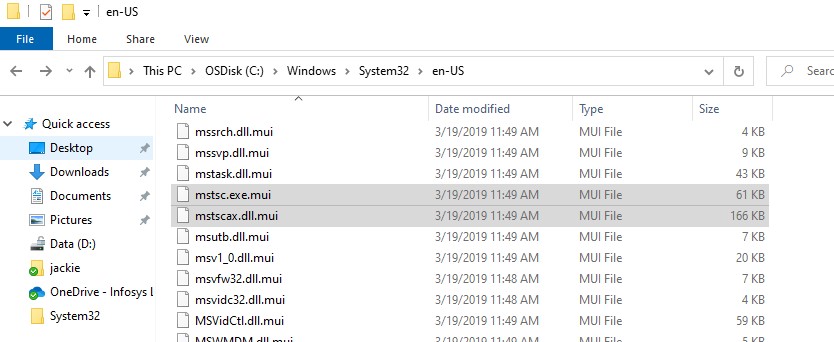
Go to path C:\Windows\System32\en-US  & replace to file to working system


c:\windows\system32\en-us\mstsc.exe.mui
c:\windows\system32\en-us\mstscax.dll.mui


Finally issue resolved :) 


Sunday, 17 May 2020

Fix: Remote Desktop Connection ‘ An Internal Error has Occurred’

Remote Desktop An Internal Error has Occurred

Many time we need to take remote to system connected in Network Domain. We take RDP through windows default Remote desktop tool(MSTC). After Entering Hostname/IP of System to connect, It freezes and Error-" Internal error Has Occurred " pop comes after few second. Many times, We restart system and it fix. But after few hours, It again come with same error.


As per my Experience Exact cause for the Error-" Internal error Has Occurred "is  due to group policy security implemented in organisation. I did all below setting to fix the issue. & once done all setting Never faced issue for  Internal Error.


1. RDP Security change in Local Group Policy
2. Terminal server Outstanding connection change
3. Group policy- Remote desktop security
4. Domain Rejoin


** Make sure all setting done with administrative account only**

1. RDP Security change in Local Group Policy


1.1 Edit group policy  Go to Run(Win+R) type gpedit.msc

Go to Computer configuration>Windows Component>Local Policies>Security Options>
System cryptography: Use FIPS complaint algorithms for encryption , hashing and signing


1.2 By Default is Disabled. If it is Enabled then Disabled  Or  it is Disabled then Enabled it


2. Terminal server Outstanding connection change

 You may workaround for this issue is to increase the maximum outstanding connections limit. On client it is 100 by default, while for server  it is 10000. The following DWORD registry key controls this value:

Computer\HKEY_LOCAL_MACHINE\SYSTEM\CurrentControlSet\Control\Terminal Server\
DWORD: MaxOutstandingConnections
VALUE: 10000


3. Group policy- Remote desktop security

Go to Run(Win+R) type gpedit.msc

Computer Configuration >> Administrative Templates >> Windows Components >> Remote Desktop Services >> Remote Desktop Session Host >> Security

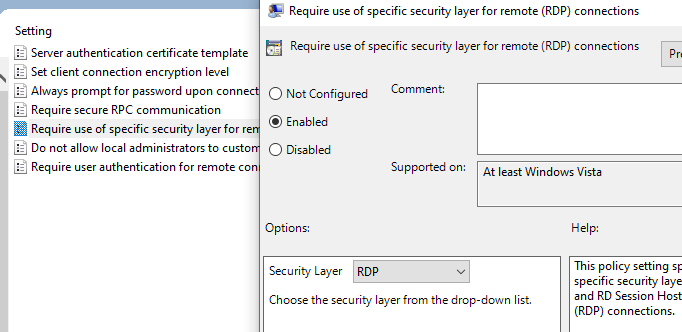
Set   Require secure RPC Communication & Require USE SSL for RDP Connection to Not configure or disabled


In case already have setting Not configured then Enable to Require USE SSL for RDP Connection as RDP


4. Domain Rejoin

4.1 Go to Run(Win+R) type sysdm.cpl 

4.2 Under Computer name tab, domain, and workgroup settings, click Change settings.

4.3. Under member of select Work group and type any name as workgroup (ex-xyz) and click OK

4.4  Now it will ask for credential to unjoin. Now type any crendial or domain ID having Domain rejoin access.

4.5 Click OK, and then restart the computer

4.6 follow same process 3.1 and select domain (compnydomain.com) and join


 After  apply all above 4 steps Till time not found same issue.  Share your views  any issue for RDP.